How to Get FullBright on Minecraft Java and Bedrock Edition
Learn how to get fullbright in Minecraft Java and Bedrock Edition with mods, resource packs, and vanilla methods. Step-by-step guide for 2026 with OptiFine, Fabric, and Forge options.
How to Get Fullbright on Minecraft Java and Bedrock Edition
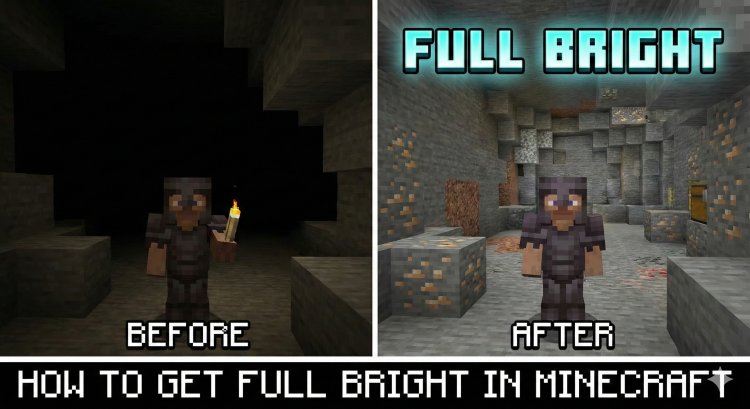
Mining deep underground, exploring dark caves, or building at night can be frustrating when you can't see anything. Fullbright in Minecraft eliminates darkness entirely, letting you see perfectly in caves, underwater, and at night without placing torches everywhere. This comprehensive guide covers multiple methods to enable fullbright in both Minecraft Java Edition and Bedrock Edition, updated for 2026.
Whether you're looking for mod-based solutions, resource packs, or vanilla-friendly gamma adjustments, we'll walk you through step-by-step instructions for every method.
What is Fullbright in Minecraft?
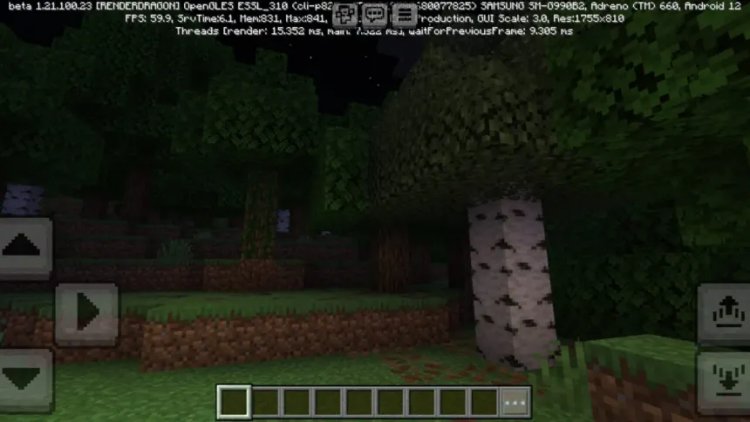
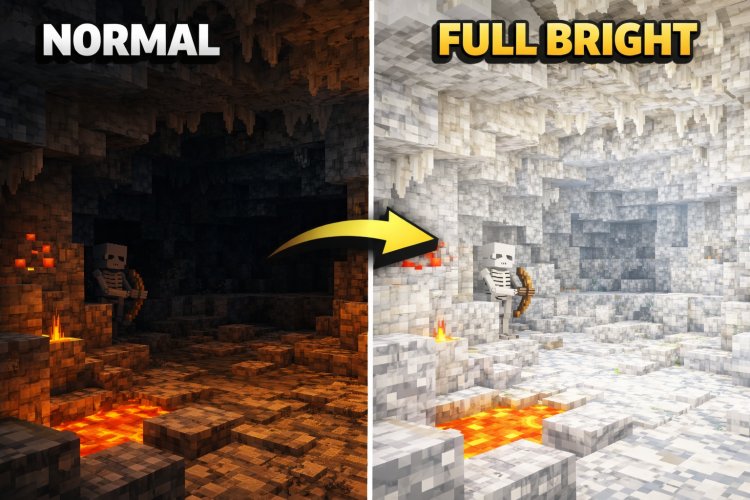
Fullbright is a feature that maximizes your brightness levels beyond the standard in-game brightness slider. While Minecraft's default brightness setting still leaves caves and nighttime relatively dark, fullbright removes all shadows and darkness, making everything perfectly visible regardless of light level.
Think of it as permanent Night Vision without the potion effects or particle distractions. It's incredibly useful for mining, exploring caves, building in dark areas, and PvP situations where visibility matters.
How to Get Fullbright on Minecraft Java Edition
Method 1: Using OptiFine (Most Popular)
OptiFine is the most popular way to get fullbright in Java Edition. It's a performance mod that also includes a built-in fullbright feature called "Dynamic Lights" and brightness customization.
Step-by-Step Installation:
- Download OptiFine from the official website (optifine.net). Make sure to select the version that matches your Minecraft version.
- Run the OptiFine installer (.jar file). If it doesn't open, make sure you have Java installed on your computer.
- Click "Install" in the OptiFine installer window and wait for it to complete.
- Open Minecraft Launcher and select the "OptiFine" profile from the dropdown menu.
- Launch the game, go to Options > Video Settings.
- Slide the "Brightness" setting all the way to the right past "Bright" - you'll see it change to values above 100%. Set it to 500% or higher for true fullbright.
Pros: Easy to install, includes performance improvements, widely compatible with other mods. Cons: Requires mod installation, may not work on some multiplayer servers.
Method 2: Using Fabric Mod Loader with Fullbright Mods
Fabric is a lightweight mod loader that works great with dedicated fullbright mods. Popular options include "Fullbright Toggle" and "LambDynamicLights."
Step-by-Step Installation:
- Download and install Fabric Loader from fabricmc.net.
- Run the Fabric installer, select your Minecraft version, and click Install.
- Download the Fabric API from CurseForge or Modrinth (required for most mods to work).
- Download a fullbright mod like "Fullbright Toggle" from CurseForge or Modrinth.
- Place both .jar files (Fabric API and Fullbright mod) into your .minecraft/mods folder.
- Launch Minecraft with the Fabric profile and press the fullbright toggle key (usually G or configurable in mod settings).
Pros: Lightweight, easy toggle on/off with keybind, works with latest versions quickly. Cons: Requires Fabric setup, separate mod installation needed.
Method 3: Using Forge Mod Loader
Forge is another popular mod loader with several fullbright options. This method is ideal if you're already using Forge for other mods.
Step-by-Step Installation:
- Download Forge installer from files.minecraftforge.net for your Minecraft version.
- Run the installer and select "Install Client."
- Download a Forge-compatible fullbright mod from CurseForge.
- Place the mod .jar file in your .minecraft/mods folder.
- Launch Minecraft with the Forge profile and enable fullbright through mod settings or keybind.
Pros: Great if already using Forge mods, stable and well-supported. Cons: Forge can be heavier than Fabric, slower to update to new versions.
Method 4: Fullbright Resource Pack (No Mods Required)
Resource packs can modify lighting values without requiring any mods. This is the safest method for multiplayer servers.
Step-by-Step Installation:
- Download a fullbright resource pack from websites like Planet Minecraft or CurseForge (search for "fullbright resource pack").
- Place the downloaded .zip file into your .minecraft/resourcepacks folder.
- Launch Minecraft and go to Options > Resource Packs.
- Move the fullbright pack from "Available" to "Selected" and click Done.
Pros: No mods required, works on most servers, easy to enable/disable. Cons: May not be as effective as mod-based solutions, some packs affect textures.
Method 5: Manual Gamma Value Editing (Advanced)
You can manually edit Minecraft's options file to set brightness beyond the normal limits. This method works in vanilla Minecraft without any mods or resource packs.
Step-by-Step Instructions:
- Close Minecraft completely.
- Navigate to your .minecraft folder (Windows: Press Win+R, type %appdata%.minecraft, press Enter).
- Open the "options.txt" file with Notepad or any text editor.
- Find the line that says "gamma:" followed by a number (usually between 0.0 and 1.0).
- Change the value to something high like 10.0 or 100.0 for maximum brightness.
- Save the file and launch Minecraft.
Pros: No downloads required, works in vanilla Minecraft, completely safe for servers. Cons: Value resets if you change brightness in-game, requires manual file editing.
How to Get Fullbright on Minecraft Bedrock Edition
Bedrock Edition (Windows 10, Xbox, PlayStation, Nintendo Switch, Mobile) has fewer modding options than Java Edition, but fullbright is still achievable through resource packs and add-ons.
Method 1: Fullbright Texture Pack (Recommended)
Texture packs are the primary way to achieve fullbright in Bedrock Edition. These packs modify the game's lighting files to maximize brightness.
Step-by-Step Installation:
- Download a Bedrock-compatible fullbright texture pack from MCPEDL.com or MCPEHub.
- The file should be a .mcpack or .zip file.
- On mobile/console: Tap the file to import it automatically. On Windows 10: Double-click the .mcpack file.
- Launch Minecraft Bedrock and go to Settings > Global Resources.
- Activate the fullbright pack by clicking on it in the "My Packs" section.
Pros: Works on all Bedrock platforms, no modding required, safe for multiplayer. Cons: Limited compared to Java mods, may affect game textures.
Method 2: Night Vision Resource Pack
Some resource packs simulate permanent night vision effects without actually requiring the potion. These are lighter modifications that don't change lighting files as drastically.
Installation follows the same steps as Method 1, but search specifically for "night vision resource pack" on Bedrock resource pack websites.
Pros: Less intrusive than full lighting changes, better performance. Cons: Not as bright as true fullbright solutions.
Method 3: Behavior Pack with Commands (Realms/Creative)
If you have access to commands (creative mode or realm ownership), you can give yourself permanent night vision effects.
Command:
/effect @s night_vision 999999 255 true
This gives you night vision for 999,999 seconds (over 11 days) without visible particles. You can also use repeating command blocks to automatically reapply the effect.
Is Fullbright Allowed on Servers?
Server compatibility depends on the method you use and the server's rules:
Safe for most servers: Resource packs and texture packs are generally allowed because they're client-side modifications that don't affect gameplay mechanics. Gamma editing is also typically safe.
May be restricted: Some competitive servers or PvP servers ban fullbright mods as they provide an advantage. Always check the server's rules before using mods.
Requires permission: Using mods like OptiFine or Fabric mods on anti-cheat protected servers might flag you. Stick to resource packs or ask server staff if unsure.
Troubleshooting Common Fullbright Issues
Fullbright Not Working After Installation
Make sure you've selected the correct Minecraft profile (OptiFine, Fabric, or Forge). Verify the resource pack is activated in settings. Check that you're using a compatible version - mod versions must match your Minecraft version exactly.
Game Crashes on Startup
This usually means version incompatibility. Double-check that your mod loader and fullbright mod match your Minecraft version. Remove other mods temporarily to identify conflicts.
Fullbright Resets to Normal
If using gamma editing, avoid changing brightness in-game settings as this will overwrite your custom value. For mod-based solutions, check if your keybind was accidentally pressed to toggle it off.
Performance Issues After Installing Fullbright
Fullbright itself shouldn't impact performance, but if you installed OptiFine or other mods, adjust video settings. Lower render distance, turn off shaders, and disable fancy graphics if experiencing lag.
Fullbright vs Night Vision: What's the Difference?
Night Vision Potion: Temporary effect lasting 3-8 minutes, adds particle effects around your screen, requires brewing or finding in loot, has a blue tint overlay.
Fullbright: Permanent solution requiring no potions, no particle effects or screen tint, completely client-side with no need for resources, provides clearer visibility overall.
For convenience and consistent gameplay, fullbright is the superior choice for most players.
Which Fullbright Method Should You Use?
For Java Edition:
Best overall: OptiFine (easiest installation, includes performance boosts)
Most server-friendly: Resource packs or gamma editing
For modpack users: Fabric or Forge mods (depending on your mod loader)
For Bedrock Edition:
Best overall: Fullbright texture packs (works on all platforms, easy to install, safe for servers)
Final Thoughts
Getting fullbright in Minecraft dramatically improves your mining, exploring, and building experience. Whether you choose the powerful mod-based approach with OptiFine or Fabric, the server-safe resource pack method, or the simple gamma editing technique, you'll never struggle with darkness again.
For Java Edition players, OptiFine remains the gold standard for fullbright functionality, offering both convenience and additional performance benefits. Bedrock Edition players have fewer options but can achieve excellent results with dedicated fullbright texture packs available from trusted sources like MCPEDL.
Remember to always download mods and resource packs from trusted sources, verify they match your Minecraft version, and check server rules before using fullbright in multiplayer environments. With the right setup, you'll enjoy crystal-clear visibility in every cave, ocean, and nighttime adventure.
What's Your Reaction?








![Forrest [32x] Revamp MCPE PvP Texture Pack: A Comprehensive Review](https://minecraftmodded.com/uploads/images/202309/image_650x433_65020ec48de5d.jpg)



![Patrix Resource Pack For 1.19 [32x→256x]](https://minecraftmodded.com/uploads/images/202210/image_750x415_6343b3ab59eff.jpg)


