Moonlight Texture Pack Minecraft: PvP Combat Guide
Moonlight texture pack for Minecraft Bedrock transforms PvP combat with custom armor, swords, and effects. Blue and crimson themed visuals with competitive edge.
Created by Mcadd182719
What Is the Moonlight Texture Pack for Minecraft Bedrock?
The Moonlight Texture Pack is a specialized visual mod for Minecraft Bedrock Edition that wraps your gameplay in a nocturnal, aesthetically cohesive blue and crimson color scheme. Created by Mcadd182719, this pack merges atmospheric design with competitive functionality, making it an ideal choice for players who want their PvP arenas to feel as polished as their combat skills.
Unlike casual texture packs that prioritize whimsy or realism, Moonlight is built from the ground up for player-versus-player combat—every custom texture, particle effect, and visual tweak serves a dual purpose: looking great while giving you a tactical advantage in heated battles.
Moonlight Texture Pack Minecraft: Aesthetic Meets Competition
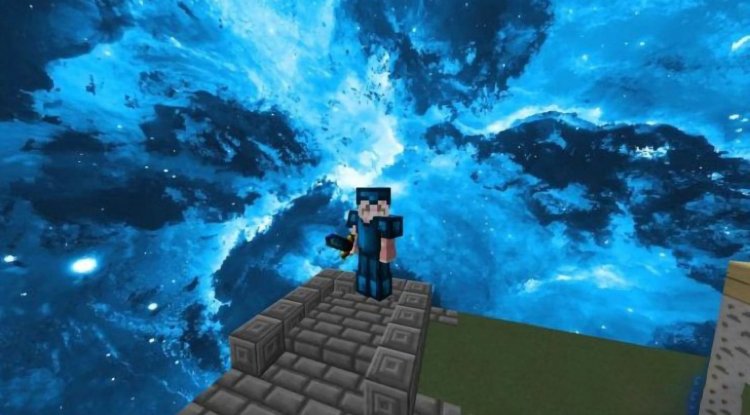
The moment you load into a world with Moonlight active, you'll notice the thematic coherence immediately. The blue and crimson palette creates a striking visual identity that's neither too dark to see clearly nor too bright to cause eye strain during extended PvP sessions. This thoughtful color balance isn't accidental—it's the result of designing specifically for competitive play where milliseconds and clear sightlines matter.
The pack transforms standard Minecraft textures into a moonlit fantasy aesthetic without sacrificing the visual clarity you need to track opponent movements, projectile trajectories, and item drops. Whether you're fighting in a custom arena or a survival multiplayer server, Moonlight establishes a professional, polished atmosphere that elevates the entire experience beyond vanilla gameplay.
Key Features: Custom Textures Designed for Combat
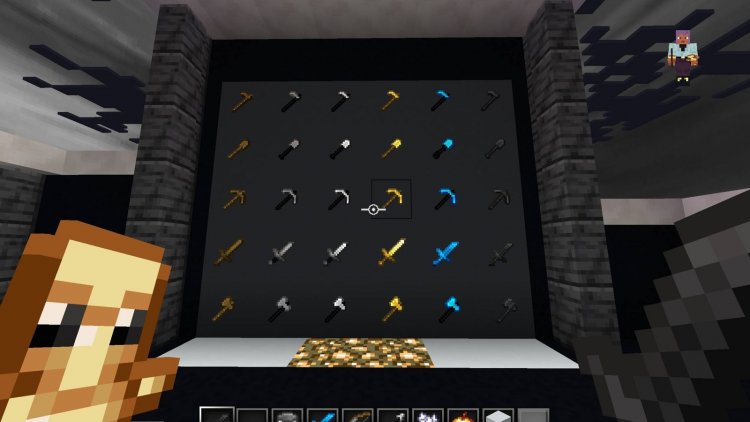
- Custom Sword Textures – Redesigned blade and handle designs that stand out in your hotbar and enemy inventories
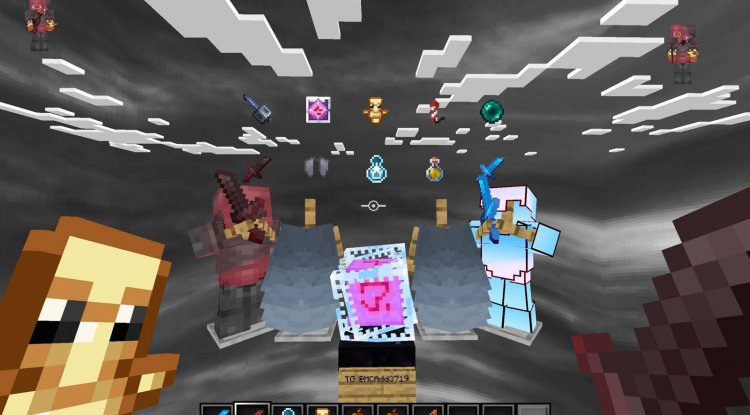
- Custom Armor Textures – Full armor set overhauls in blue and crimson hues for easy visual identification during chaotic battles
- Custom Totem Textures – Enhanced totem-of-undying visuals for immediate recognition when clutch moments happen
- Custom Particle Effects – Refined particle systems for hits, magic, and environmental effects that look sharp without obscuring vision
- Custom Potion Textures – Revamped potion bottle designs that make buff management faster and more intuitive
- Enhanced Visibility for Combat – Optimized contrast and saturation across all textures to keep you sharp during intense fights
- Optimized Performance – Lightweight asset files ensure smooth framerates even on mid-range devices
Why Custom Swords and Armor Matter in PvP Texture Packs
In competitive Minecraft, information is power. Stock textures can blend together during fast-paced combat, causing you to misread what your opponent is holding or what armor they're wearing. The Moonlight pack's custom sword and armor textures cut through this visual clutter by introducing distinct silhouettes and color profiles that your brain processes instantly.
This isn't about cheating—it's about clarity. A uniquely textured diamond sword looks unmistakably different from iron the moment it appears on screen. Similarly, custom armor textures let you gauge opponent gear tiers at a glance, informing your combat decisions before you even close distance. For competitive players, this psychological advantage translates into faster reaction times and better tactical awareness.
Particle Effects and Potion Visibility: The Competitive Edge
One of Moonlight's standout features is its attention to particle effects and potion textures. During a heated battle, knowing instantly whether you just applied Strength II or Speed III can mean victory or defeat. The pack redesigns potion bottles with enhanced visual distinction, making status effect management faster and less error-prone when you're under pressure.
The custom particle effects go beyond aesthetics—they're calibrated to remain visible without creating visual noise that obscures opponent positions or incoming attacks. Combat particles from sword swings, magic, and environmental interactions are crisp and readable, ensuring that the visual feedback loop between your actions and in-game results remains tight and responsive.
Performance Optimization: Moonlight for Mid-Range Devices
Texture packs can be resource-heavy, especially on mobile devices and lower-end tablets. Mcadd182719 designed Moonlight with optimization in mind, ensuring that custom textures don't tank framerates when you need them most. The pack uses efficient asset compression and thoughtful file organization, allowing you to maintain smooth, consistent performance even during intense multiplayer battles.
This is particularly important for Bedrock Edition players who might be on Nintendo Switch, mobile phones, or budget gaming devices. You shouldn't have to choose between a beautiful pack and playable framerates—Moonlight gives you both.
Who Should Use the Moonlight Texture Pack?
Competitive PvP Players: If you're grinding faction wars, competing in custom tournaments, or dominating your survival server's PvP scene, Moonlight is built for you.
Content Creators: Streamers and YouTubers who want their combat footage to look professional and distinctive will appreciate the visual polish and thematic coherence.
Aesthetic-Focused Builders: Even non-PvP players who love blue and crimson color schemes and want a moonlit atmosphere for their builds will find value in the textures, though the pack is optimized for combat scenarios.
Bedrock Exclusive Players: If you're locked into Bedrock Edition (console, mobile, or Windows 11 app), Moonlight is one of the few texture packs that delivers pro-level PvP textures without requiring Java Edition mods.
How to Install the Moonlight Texture Pack
Installing texture packs on Minecraft Bedrock is straightforward. Download the Moonlight pack file (typically in .mcpack format) to your device. On most platforms, opening the .mcpack file automatically triggers the Minecraft launcher, which will prompt you to import the pack into your game. On mobile devices, you may need to navigate to Settings > Global Resources and manually select the pack folder.
Once imported, activate the pack by opening a world or creating a new one, then navigate to Resource Packs in the world settings. Locate Moonlight, toggle it on, and confirm that it appears in the "Active" list. You can adjust the pack's priority relative to other resource packs using the arrow buttons. Restart your world to ensure all textures load properly, and you're ready to fight under the moonlight.
Frequently Asked Questions About Moonlight Texture Pack
Is the Moonlight Texture Pack compatible with all Minecraft Bedrock versions?
Yes, Moonlight is designed for Minecraft Bedrock Edition across all platforms—Windows, console, and mobile. However, always verify the pack's version compatibility before downloading, as Bedrock updates occasionally require texture pack adjustments.
Does the Moonlight pack work with other resource packs simultaneously?
You can stack multiple resource packs, but conflicts may occur if two packs modify the same textures. Moonlight is comprehensive, so running it alone typically produces the intended aesthetic. If you want to combine it with another pack, ensure they target different assets (like UI versus entity textures).
Will using a PvP texture pack like Moonlight give me an unfair advantage?
Texture packs are legitimate in vanilla survival multiplayer and most servers. However, always check your server's rules—some competitive servers have texture pack restrictions. Moonlight doesn't introduce new information unavailable to vanilla players; it simply clarifies existing visual data, similar to adjusting brightness or contrast.
Can I use Moonlight in single-player worlds and creative mode?
Absolutely. Moonlight enhances any Minecraft Bedrock world, whether you're building creatively, testing combat mechanics solo, or exploring survival mode. The pack's benefits shine brightest in PvP, but it looks great everywhere.
What's Your Reaction?











![Patrix Resource Pack For 1.19 [32x→256x]](https://minecraftmodded.com/uploads/images/202210/image_750x415_6343b3ab59eff.jpg)


